
Sections
A section is the group in the side menu that holds spaces. It has its own name, icon, visibility and access list, and decides what shows up first when someone comes in.
Every community is organized in three levels:
The section is the first level: each bold heading in the side menu, with a folder icon, is a section. Inside it are the spaces, and each space has a module that says what it is.
What it is and what it's for
A section groups spaces that have something in common, and it's how members find their way around the menu. Think of sections as the drawers of a cabinet:
| Community | Sections that work |
|---|---|
| Online course | Start here · Lessons · Live sessions · Student area |
| Coworking | Announcements · Calendar · Residents · Open community |
| A company's HR | Announcements · Training · Benefits · Leadership |
| Association | Welcome · Content · Events · Members' area |
But a section is more than a heading. It has its own visibility and access list, with the same options as a space, and those rules apply to everything inside it. A Subscribers' area section with Subscribers visibility locks every space you put there in one go.
How it works
What a section has
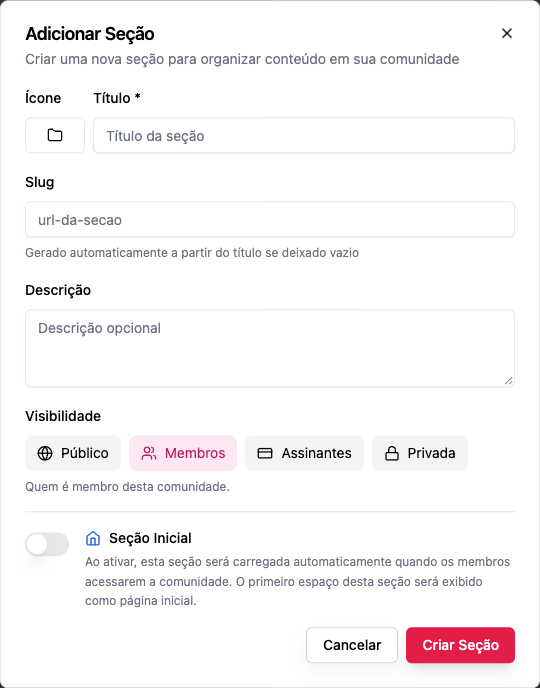
| Field | What it's for |
|---|---|
| Icon | Shown next to the title in the menu |
| Title | The name in the menu. Required |
| Slug | The piece of the address (/start-here/...). Generated from the title if you leave it blank; unique in the community |
| Description | Optional; helps the staff remember what the section is for |
| Visibility | Public, Members, Subscribers or Private. Applies to every space inside it |
| Who gets in | Only with Private: the groups, products or plans that unlock the section |
| Initial Section | When turned on, this section opens when members come into the community, and its first space becomes the home page |
The section's visibility is the floor for its spaces
The section's rules and the space's rules add up:
- anyone who can't get through the section sees nothing inside it;
- a space is never more open than its section. If the section is Subscribers, its spaces can only be Subscribers or Private;
- tightening a section's visibility also tightens the spaces that were more open. The screen tells you beforehand how many spaces will change.
The order, from most open to most closed, is Public › Members › Subscribers › Private. See Visibility and access.
The initial section
Every community has one section marked as initial (the Home section that comes ready-made). When someone opens the community's address, they land on its first space. That's why:
- the initial section can't be deleted ("Cannot delete the home section. Please set another section as home first.");
- you can't unmark the initial section without marking another ("Cannot unset home section. Please set another section as home first.").
Who manages them
Creating, editing, reordering and deleting sections is for owners and admins. Moderators and members only see the sections. See Roles and permissions.
Step by step
Create a section
Role: owner or admin.
- At the end of the side menu, click Add Section.
- Choose the Icon.
- Write the Title (e.g. Start here).
- Leave the Slug blank so it's generated, or write one (lowercase letters, numbers and hyphens). The slug can't start with
_or be a name the platform reserves for its own pages (such asadmin,pricing,billing,checkout,products,settings,members,login,api,mcp); such a slug is refused with "This address cannot be used: do not start it with _ or use a name the platform reserves (such as admin, pricing, billing, products)." A slug generated from the title is adjusted automatically. - If you like, write a Description.
- Choose the Visibility. With Private, add the groups, products or plans that unlock the section under Who gets in.
- Turn on Initial Section only if this section should open first.
- Click Create Section. It appears at the end of the menu, empty, with Add Space underneath.
Rename it or change its visibility
- Hover over the section in the menu and open Section options.
- Click Edit section.
- Change what you need and save.
Changing the title doesn't change the slug on its own: links you've already shared keep working.
Reorder
Drag the section up or down in the menu (Reorder section). The order is the same for every member.
Collapse
Each section has a Collapse / Expand arrow next to its title. This is a preference of whoever is looking; it changes nothing for anyone else.
Delete
- First move or delete the section's spaces. A section with spaces can't be deleted: "Cannot delete section with active spaces. Please delete spaces first."
- Open Section options › Delete section and confirm.
There is no way to "hide" a section without deleting it. To take a section out of members' view without losing anything, change its visibility to Private with an empty Who gets in list: only the staff can still see it.
Examples
A course with a student area. A Start here section (Public) with a welcome Content space that works as a showcase. A Student area section (Private, unlocked by the course plan) with Courses, the class Feed and Events. People who haven't bought see the showcase and the lock.
Coworking. An Announcements section (Members) with a Feed where only the staff posts. A Residents section (Private, unlocked by the Resident plan) with the room calendar and the board.
HR. An Announcements section (Members). A Leadership section (Private, unlocked by the Leadership group): anyone outside the group doesn't even know it exists.
Common errors and how to fix them
| Message | What to do |
|---|---|
| Cannot delete section with active spaces. Please delete spaces first. | Drag the spaces to another section or delete them |
| Cannot delete the home section… | Mark another section as the Initial Section and try again |
| This space cannot be more open than the section… | Open up the section or close down the space. The section is the limit |
| The access grant "…" does not exist in this community. | The chosen group, product or plan was deleted; remove it from the list |
| The Add Section button doesn't appear | You're not an owner or admin |
Frequently asked questions
Is there a limit on sections? The platform has no limit. In practice, 3 to 6 sections keep the menu easy to read.
Can I put a section inside another? No. The structure has a single section level; to subdivide, use more spaces or more sections.
What happens to the spaces if I make the section private? They become at least as closed as the section. Anyone not on the section's list stops seeing all of them.
Can two spaces in different sections have the same slug?
Yes. A space's slug is unique within its section, and the full address is /<section>/<space>.
Is the order of sections the same for everyone? Yes. Only collapsing and expanding is per person.
In the API
GET /api/sections (with the spaces), POST /api/sections, PUT /api/sections/{id}, DELETE /api/sections/{id} and POST /api/sections/reorder. See Sections & Spaces.