
Spaces
A space is the area where things happen: it lives inside a section, has a module, and defines who sees it, who creates content and what it takes to get in.
A space is each item in the side menu, inside a section: "Feed", "Lessons", "Calendar", "Photo gallery". It's where content lives. Every space has a module, chosen when it's created, which says what it is (a feed, a list of events, courses…).
What it's for
The space is the unit of access and organization. Each one answers three questions:
- What is it? The module: Feed, Content, Events, Courses, Gallery, Ranking, Link, Call for papers, Store or Certificates.
- Who sees it? The visibility: Public, Members, Subscribers or Private.
- Who posts? The Who can post rule: Anyone, Staff or Admins.
Real examples:
| Space | Module | Visibility | Who can post |
|---|---|---|---|
| Company announcements | Feed | Members | Staff |
| Coworking residents' board | Feed | Private (Resident plan) | Anyone |
| Course lessons | Courses | Private (the course product) | Admins |
| Live session calendar | Events | Members | Staff |
| Open blog | Content | Public | Admins |
| Event photos | Gallery | Members | Anyone |
How it works
What a space has
| Field | What it's for |
|---|---|
| Module | The space's type. Chosen in the first step |
| Icon | Next to the name in the menu |
| Title | The name in the menu. Required |
| Slug | The piece of the address. The space lives at /<section>/<space>. Generated from the title; unique within the section |
| Description | Optional |
| Visibility | Who sees the space. Never more open than the section's |
| Who gets in | With Private: the groups, products or plans that unlock it |
| Who can post | Who creates items inside the space |
| Module Configuration | Whatever the module asks for: the Link's external address, the Call for papers type… |
Visibility and access
The default visibility of a new space is Members. The full rules, and what a member sees without access, are in Visibility and access. In short:
- Public: anyone, even without signing in.
- Members: anyone in the community.
- Subscribers: anyone with any active subscription. For everyone else, the space doesn't appear.
- Private: only those on the list. If the list has a plan or a product, people who don't have it see the space with a lock (Requires a plan / Requires a purchase); if the list only has groups, the space disappears from the menu for anyone not in them.
Owners, admins and moderators see all spaces.
Who can post
| Option | Who creates items in the space |
|---|---|
| Anyone | Whoever the item type allows (the default) |
| Staff | Owners, admins and moderators |
| Admins | Owners and admins |
Commenting and reacting stay open to anyone who sees the space. Remember that some items already have their own minimum role: events are for moderators and above, courses for admins and above. See Roles and permissions.
Pre-moderation
The Feed and Content module configuration includes the Require approval before publishing switch ("All content will need admin approval before being visible").
Coming soon Pre-approval has no effect yet: what gets published shows up right away. The approval queue and the moderation screen are on their way. See Moderation.
Who creates and organizes spaces
Creating, editing, moving and deleting spaces is for owners and admins.
Step by step
Create a space
Role: owner or admin.
- In the menu, under the section where the space will live, click Add Space.
- Module: on the Community tab, choose one of the modules (Content, Events, Courses, Ranking, Feed, Link, Gallery, Call for papers, Certificates) and click Next. The Planning & HR and Coworking tabs show modules that aren't available yet.
- Configuration › Space Details: choose the Icon, write the Title and, if you like, the Slug and the Description. A space's slug can't start with
_: "This address cannot be used…". - Choose the Visibility. With Private, add the groups, products or plans under Who gets in.
- Choose Who can post.
- In Module Configuration, fill in whatever appears (for Link, the address; for Call for papers, how many calls and the type).
- Click Create Space. It appears in the section, at the end of the list.
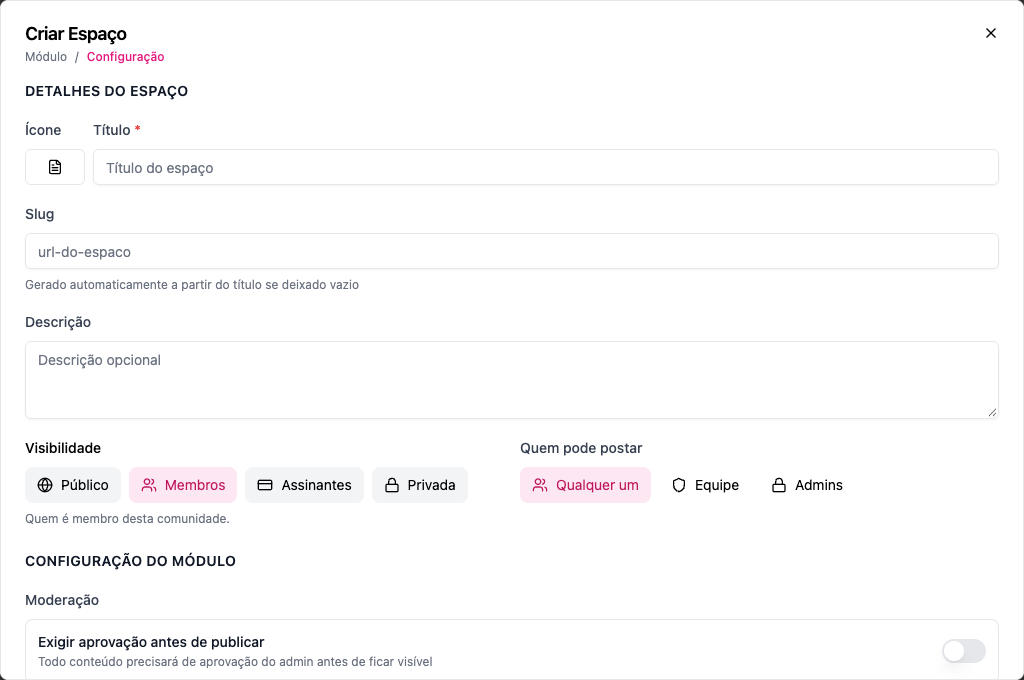
Edit
Hover over the space in the menu, open Space options › Edit space, make your changes and save. The Module Type shows up when editing, but changing it on a space that already has content hides that content (an event doesn't show up in a Feed, which is a different module). Prefer creating a new space.
Move to another section and reorder
Drag the space through the menu: up and down changes the order; onto another section moves it there. If the slug already exists in the destination section, it's adjusted. The space keeps following the new section's visibility: in a more closed place, it becomes more closed.
Delete
Open Space options › Delete space and confirm. The space disappears from the menu for everyone, along with whatever was in it. Deletion can't be undone from the screen.
There's no "archive": to take a space out of circulation without deleting it, set it to Private with an empty list (only the staff sees it) or move it to a staff section.
What members see
- In the menu, only the spaces they can open, plus those locked by a plan or product, with the lock.
- Inside the space, the module's screen: the Feed timeline, the list of events, the courses.
- The create button (New Status, Create Content, Create Event…) only for those who can create there.
Common errors and how to fix them
| Message | What to do |
|---|---|
| This space cannot be more open than the section "…", which is … | Close down the space or open up the section |
| The access grant "…" does not exist in this community. | Remove the deleted group, product or plan from the list |
| Section not found or does not belong to this community. | The section was deleted; choose another |
| Only staff members (admin, owner, moderator) can perform this action | The space is set to Staff and the person is a member |
| Only admins (admin, owner) can perform this action | The space is set to Admins |
| You do not have access to this space. | The person doesn't have the plan, product or group on the list |
Frequently asked questions
Can a space be in two sections? No. Each space belongs to one section. To show up in two places, use a Link space pointing to the other one.
Can I have two Feeds? Yes, and it's common: a general Feed and a class Feed, for example. The general Feed shows what comes from the spaces the person can see.
Do people without access see that the space exists? It depends: with a plan or product on the list, they see it with a lock (it's a showcase); with a group or with Subscribers, they don't.
What happens to the content when I change the visibility? Nothing is deleted. Only who can see it changes.
In the API
POST /api/spaces (with sectionId, title, module, visibility, access, canCreate), PUT /api/spaces/{id}, DELETE /api/spaces/{id}, POST /api/spaces/reorder and GET /api/spaces/modules. See Sections & Spaces and the Creation order.