
Releases
You can now run your whole community by chatting with Claude or ChatGPT, set up products and plans as drafts while your business information is under review, issue certificates and follow every subscription on one screen. Buyers also get card installments with interest, and Pay now to settle a late renewal.
A lot shipped at once today, and most of it changes the daily routine of whoever runs a community. The six highlights:
- AI assistants: connect Claude, ChatGPT or Cursor and just say what you need, like building a course, opening a call for papers, inviting a cohort or checking this month's sales. The assistant covers every module of the community.
- Set up monetization before approval: products, plans, options, coupons and offers start as drafts while your business information is under review; publishing and selling wait for approval.
- Certificates: a new space for issuing certificates to a whole cohort, with a PDF, a verification page and an Add to LinkedIn button.
- Subscription management: the list of who subscribes to what, with your team's actions on each subscription, now under Members.
- Installments with interest and Pay now: the annual plan in up to 12 card installments, and late payers settle up without subscribing again.
- My Account in tabs: profile, password, communities, assistants and payments, each in its own place.
After them come the other new features (among them the Activity logs, with who did what in the community, and the Gamification tab, to decide how much each action is worth), improvements and fixes, each with what changes for you. At the end, set apart, is what matters to developers, including a change to the API paths that requires updating integrations.
AI assistants: your community in a conversation
What it is. Memberfy now works inside Claude, ChatGPT, Claude Code and Cursor. You connect the assistant once, and from then on you write what you want the way you'd ask someone on your team. The assistant does the work in your community and tells you what it did.
Why it matters. Plenty of tasks that take several screens today become a single request: building a course with modules and lessons, creating this month's event with tickets, opening the conference's call for papers with tracks and a committee, inviting a cohort, issuing certificates, putting together the monthly report with a chart. The assistant does what the app lets you do, in every module: reorganizing sections and spaces, moving a post, editing modules and lessons, starting an event's live stream, editing coupons and offers. And members use it too: proposing a talk, enrolling in a course, RSVPing, viewing or canceling their own subscription. The assistant acts with your role and in one community only. Anything that touches money or deletes something waits for your "yes" to a summary before it happens; everything else happens right away, like a click in the dashboard. And you can disconnect it whenever you like.
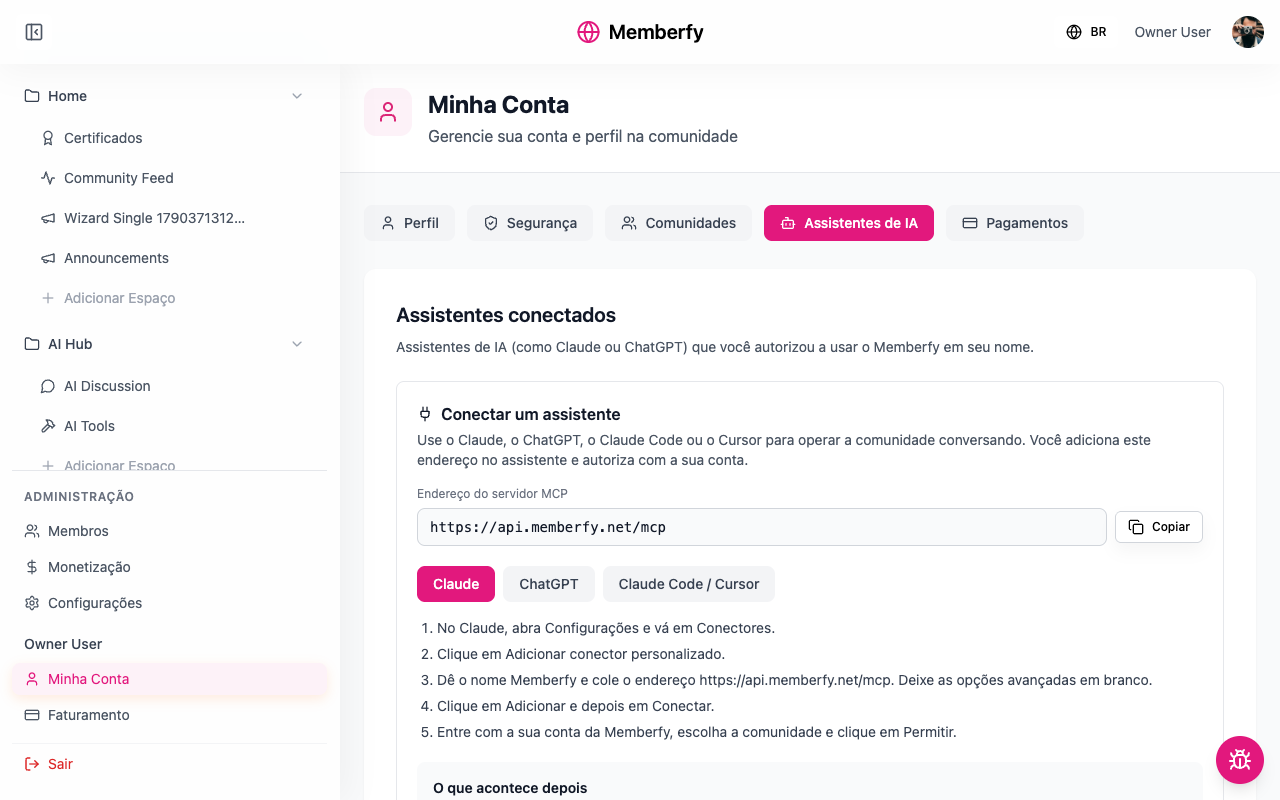
Where to find it. In the sidebar, under your name, My Account › AI assistants. Owners and admins also find it in Settings › AI assistants, along with the list of every assistant connected to the community.
How to start.
- In My Account › AI assistants, click Copy next to MCP server address. The steps for each assistant are right below it.
- In Claude, open Settings › Connectors › Add custom connector, name it Memberfy, paste the address, then click Add and Connect.
- In the Memberfy window that opens, pick the community and click Allow. To check, ask: "Which community are you connected to, and with what role?"
Requests you can paste into Claude.
- "Build a 4-module course on Excel for beginners, with 3 lessons in each, and a R$ 297 product in up to 10 installments. Keep everything as a draft." The course, modules and lessons appear in your courses space; you add each lesson's content from the dashboard.
- "Invite these 30 people to the Cohort 3 group: ana@memberfy.net, bruno@memberfy.net, …" The assistant shows you the list first and, after your ok, reports who got the invite, person by person.
- "How did sales do this month compared with last month? Make a chart." The numbers come with the chart right in the conversation.
- "Issue the completion certificate to the September cohort group." Before issuing, it does a dry run and tells you how many people will get one and who is left out.
- "Open the call for papers for Congress 2027, with the tracks Product, Data and Career and proposals until November 30. Make Ana and Bruno reviewers for Data and show me before publishing." The call appears as a draft in the Call for papers space, with the tracks and the committee; you publish it when you approve.
In Claude, eight common requests come ready-made in the + button of the message box, under Connectors › Memberfy: the monthly report, inviting a cohort, issuing certificates, a certificate template with your brand's artwork, creating a course, creating an event, opening a call for papers and reviewing proposals.
See MCP overview, Connect Claude, Connect ChatGPT, Recipes and Create a call for papers.
Set up monetization before approval
What it is. Products, billing options, plans, add-ons, coupons and downsell offers can be created and configured before the community's Business Information is approved. Everything starts as Draft. What waits for approval is going live: publishing (the Active status) and selling.
Why it matters. The Business Information review takes up to 7 business days. Before, that was dead time: you couldn't even create a product. Now you use the review to set up your plans, prices and coupons, and on approval day you just publish.
Where to find it. The Business Information is under Settings › Business Information. Products and plans are under Monetization › Products, Options and Plans.
How to start.
- In Settings › Business Information, fill it in and click Submit for Review.
- While the review runs, create the billing options, the plan, the add-ons and the coupons. They stay as Draft.
- When the status changes to Approved, switch the options and products to Active.
Example. Escola Excel submits its Business Information on a Monday and, that same afternoon, sets up the Student plan with the R$ 49 monthly and the R$ 470 annual options, the Mentoring add-on and the LAUNCH coupon. Trying to publish before approval shows: "To publish and start selling, the community needs approved business information. Meanwhile you can create and configure everything as a draft." Approved the following week, the school publishes the options and starts selling the same day.
Good to know.
Editing approved Business Information pauses sales. It goes back to review, and checkout refuses new purchases until it's approved again. Only edit it when you need to, and submit it for review right away.
The currency comes from the country. A draft's price is in the currency of the Business Information's country (or in reais, without it). If the community is approved in another country, adjust the currency and the price before publishing.
The same through the AI assistant. If you ask for a course, an event or a plan already published and the community isn't approved yet, the assistant creates everything as a draft, undoes nothing and tells you the next step is the Business Information.
The dashboard tells you where things stand. While the community can't sell yet, the top of Monetization shows the situation (not submitted, under review with the expected answer date, rejected with the reason, or sales suspended after an edit) and the Open Business Information button.
Nothing is lost if you try to publish early. Choosing Active without approval saves the rest of the form and keeps the product as a draft, with the notice "Your other changes were saved." With approval, choosing Active on creation publishes right away.
See Business information, Products and Plans.
Certificates
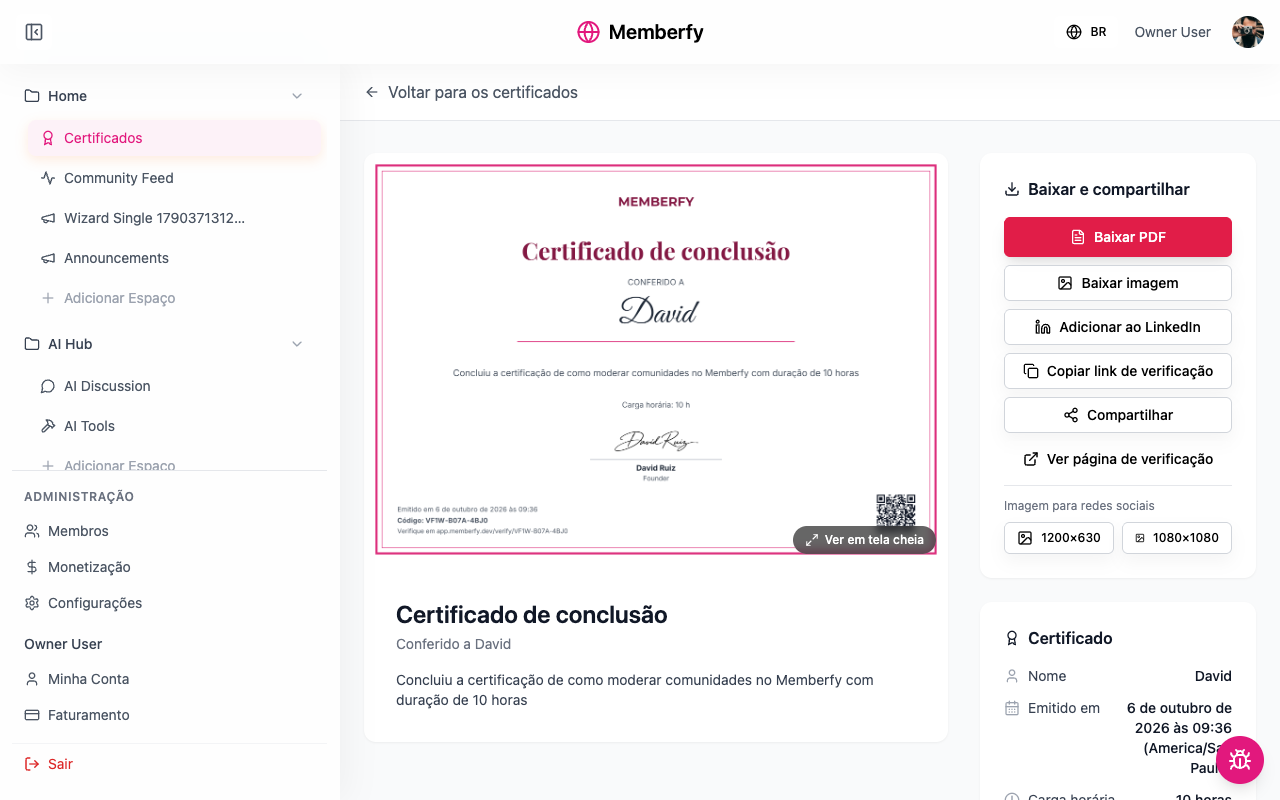
What it is. A new space module for issuing completion, attendance or training certificates. Each person gets the certificate as a PDF and as an image for social media, with a code and a QR that anyone can check on a public page.
Why it matters. A certificate is no longer a file you make by hand, one at a time. You issue it to the whole cohort at once, members get it by email and add it to LinkedIn in one click, and anyone who sees it can confirm it's genuine.
Where to find it. In the sidebar, Add Space under a section, then the Certificates module. Inside the space, Manage certificates shows the Issued certificates and the Templates.
How to start.
- Create the space with the Certificates module and choose Who issues: admins only, or the whole team.
- In Manage certificates › New template, choose Platform design (your community's logo and colors; you only fill in the text) or Your own artwork (your designer's image, where you mark where the name, date and QR go). Then Activate it.
- Click Issue certificate, pick the template and, under Recipients, choose members, groups or tags. Confirm.
Example. The September cohort of your Excel from Scratch course has finished. You issue the Certificate of completion to the September cohort group, with 8 hours of coursework: all 37 people get the email, download the PDF and post it on LinkedIn with the verification link. If someone was included by mistake, the certificate can be revoked or reissued.
See Certificates.
Subscription management
What it is. A new tab in Members with every subscription in your community: who subscribes to what, how much they pay, when the next charge is and what state it's in.
Why it matters. Your team can now handle on screen what used to have no place to be done: spotting who's past due and sending them a payment link, giving a discount for a few months, extending the period for someone who had a problem, giving a speaker a complimentary plan. Every action asks for confirmation and is logged, with who did it and when.
Where to find it. In Members › Subscriptions. Owners, admins and the finance role have access; finance gets there through the Members menu item, which opens straight on that tab for them. Anyone who saved the old Monetization link lands in the new place.
How to start.
- Open Members › Subscriptions and use the filters: Past due, Canceling, the plan or the start date.
- Click the row (or View details in the ⋮ menu) to open the subscription, with its charges, timeline and actions.
- Pick the action: Send payment link, Apply discount, Extend period, Add add-on, Cancel subscription or Reactivate.
Example. A speaker from your conference will be part of the community until the end of the year. In New subscription, pick the person and the plan, choose Complimentary with an end date of December 31 and confirm: she sees the plan's spaces at no charge, and the complimentary subscription ends on its own. To send the list to your accountant, Export CSV.

Installments with interest and Pay now
Card installments, with interest
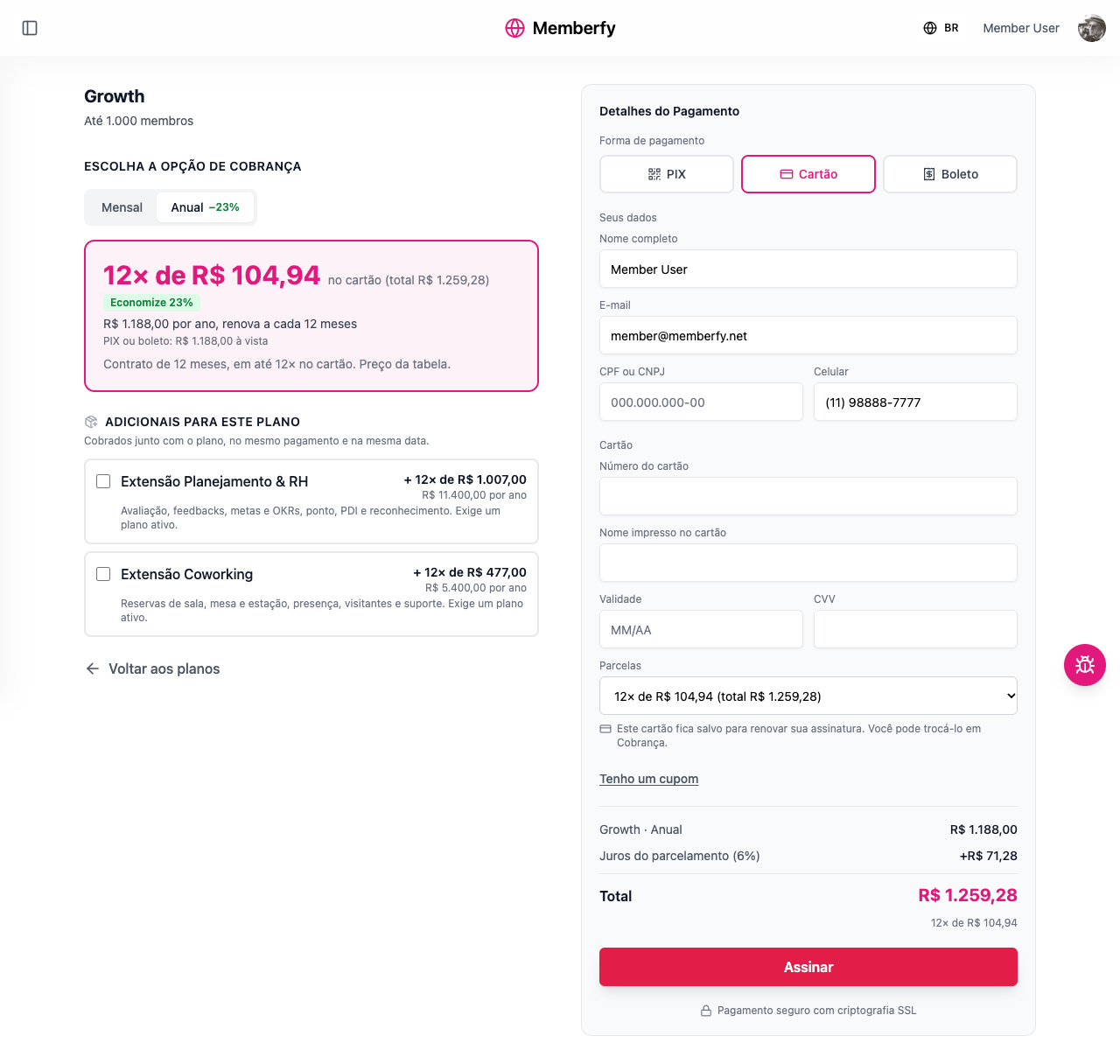
What it is. Buyers can split a card payment into up to 12 installments, with Memberfy's installment interest: 4.29% in total from 2 to 6 installments and 6.00% in total from 7 to 12. Paying in full, by PIX or by boleto, has no interest.
Why it matters. An annual plan fits more budgets, and you decide who pays the interest. By default it's the buyer, and you receive the same as a one-time payment. If you'd rather advertise "interest-free", the community absorbs the interest and the buyer pays only the list price.
Where to find it. In Monetization › Options (or Products): in the option's ⋮ menu, Edit, then the Payment & Pricing tab and the Who pays the installment interest? field.
How to start.
- Open the billing option (the Annual one, for example) with Edit.
- In the Payment & Pricing tab, choose Buyer or Organization under Who pays the installment interest?
- Save and check your pricing page: the card shows the installment amount and the total.
Example. Growth Annual costs R$ 1,188.00. With the buyer paying the interest, the page shows "12× R$ 104.94 on your card (total R$ 1,259.28)", and you receive the same as a one-time sale. With the organization paying, the buyer pays 12× R$ 99.00, and the R$ 71.28 of interest comes out of what the community receives.
Pay now
What it is. A button on the member's Billing page to pay a late renewal right away, with the saved card, another card, PIX or boleto.
Why it matters. Before, anyone who missed a renewal had to subscribe again: a new subscription was created and the old one was left hanging. Now the same subscription is brought up to date, with the same date, coupon and add-ons. You get the payment back without chasing it by hand.
Where to find it. For the member, in the sidebar under their name, Billing. The Pay now button only appears on a past-due subscription.
How to start. There's nothing to set up. When someone falls behind, send them the link with Send payment link in subscription management. The member:
- Opens Billing and sees "The renewal was not paid. Pay to keep your access."
- Clicks Pay now and chooses Saved card, Another card, PIX or Boleto.
- Confirms. By card, the answer is immediate; by PIX or boleto, the page updates on its own when the payment comes in.
Example. A member's card expired and the Growth Monthly renewal failed. They get your link, open Billing, pay with a new card and, within the same minute, the subscription goes from Past due back to Active. The new card is saved for the next renewal.
See Pay now.
My Account in tabs
What it is. Your account page is now organized in five tabs: Profile, Security, Communities, AI assistants and Payments.
Why it matters. Everything has its place, and each tab has its own address, so you can send someone straight to it ("go to My Account › Security and change your password"). Changing your password is always at hand, and a wrong current password is flagged right in the form.
Where to find it. In the sidebar, under your name, My Account.
How to start.
- Open My Account.
- In Profile, adjust your name, photo and bio in the community.
- In Security, change your password: at least 8 characters, with an uppercase letter, a lowercase letter and a number.
Example. A member asks where to change their password. Instead of explaining the way there, send them your community's address followed by /account?tab=security, and they land right on the tab.
See Account and profile.
More new features
- The community's language. Before, only the Memberfy team could change the community's main language, which is the language of its emails. Now the owner and admins change it through the AI assistant ("change the community language to Mexican Spanish") or through the API. See Languages.
- Renewal by PIX and boleto. Members who pay by PIX or boleto now get the renewal charge by email five days before it's due, and it also shows up on their Billing page. Fewer forgotten renewals, fewer lost subscribers. See Renewal.
- Add-ons at checkout. Subscribers tick the extensions on the same page as the plan and pay for everything in one payment. Existing subscribers can add an extension later from Billing, with Add an extension. See Add-ons.
- Last chance (downsell). Someone who skipped an add-on gets a discounted offer for it by email after paying. You set the discount and how long it lasts. See Downsell.
- Annual in installments and contract length. The whole year in one purchase, in up to 12 card installments; and a monthly plan can have a minimum term, such as a 6-month contract. See Annual in installments and Contract length.
- Coupons at checkout and on renewals. Buyers enter the code when they pay, and a "forever" or "for a few months" coupon keeps applying on renewals without you having to remember. See Coupons.
- Copy the plan's link. In each plan's and option's menu, Copy link grabs the direct address of the pricing page, ready to paste on Instagram or WhatsApp. See Plans.
- Activity logs in Members › Logs. Before, there was nowhere to see who did what. Now the owner and admins have a timeline with the team's actions on subscriptions, everything an AI assistant did in the community (connecting, disconnecting, each tool used and what was refused) and the member actions that earn points. You can filter by source, person and period, open the before → after of each action and send the filtered link to someone on the team. See Activity logs.
- Gamification in the dashboard. Before, how much each action is worth could only be changed through the API. Now the owner and admins turn points on or off and change the value of each action (posting, commenting, completing a lesson, attending an event…) under Members › Gamification. The new value applies from the next action on, and points already earned don't change. See Gamification.
Improvements
- Order page. Every payment now has its own page: it shows the PIX or boleto, confirms on its own when the payment comes in, and lets you cancel a PIX or boleto that won't be paid. The confirmation then shows the summary and what was unlocked, so buyers aren't left wondering. See Checkout.
- Billing page redone. Members see everything about their subscription on the plan card: amount, next charge, add-ons and contract. The charge history now shows up, and they can cancel right there without contacting support. See Member billing.
- A clearer statement. Each sale, payout or chargeback is now a single line, with how much it changed your balance. One click opens the line and shows what came in and each debit, such as the platform fee and installment interest. See Balance and statement.
- Members and Monetization reorganized. People are now together: Members has the tabs Members, Subscriptions, Groups, Tags, Org chart, Gamification and Logs. Monetization kept the money: Dashboard, Payments, Products, Plans, Options, Coupons and Fees. Payout account is now called Payments, and Billing options became Options. See Manage members and Monetization overview.
- The AI assistant asks less. Memberfy's two-step confirmation now covers only what touches money (coupons, prices, payouts, subscriptions, offers) and what deletes, removes, revokes or cancels. Inviting, changing roles, changing settings, issuing certificates and deciding proposals happen on the first request; before issuing certificates, the assistant does a dry run and shows who gets one. Claude keeps its own permission prompt, which you can set to "always allow" in the connector settings. See Money and confirmation.
- The assistant writes with formatting. Posts, event descriptions, the call for papers text and the proposals the assistant writes reach the app with bold, italic, lists, links and subheadings, as if they had been written in the editor. See Markdown text.
- CPF or CNPJ kept. Buyers used to type their tax ID on every purchase. Now it stays on their account and comes filled in next time. See Checkout.
- Invite with a link to create a password. People invited without an account used to get a temporary password. Now they get a link, valid for 7 days, to create their own, and every invitee gets the email, bulk invites included. See Invite members.
- Who can post. Each space's rule (Anyone, Staff or Admins) wasn't always saved. Now it's stored and enforced on every post. See Spaces.
- Who pays the fees. New products and options start with Buyer: you receive the full price without changing anything. See Platform fee.
- Links the platform sends. Payment, certificate verification, invite and offer links have new, standard addresses. The ones already sent keep working.
Fixes
- A plan subscribed twice. Someone who already subscribed to a plan could buy it again. Now checkout tells them they already subscribe and, if they have an unpaid PIX or boleto for that plan, reuses it instead of creating another. See Checkout.
- A paid PIX stuck on "waiting". When the payment confirmation was slow, the order sat still. Now Memberfy fetches the result on its own, and access opens as soon as the payment is confirmed.
- Card renewal. The subscription period could move forward before the card was approved. Now it only moves when the payment is confirmed.
- Wrong current password. Getting the current password wrong while changing it used to sign the person out. Now the warning appears in the form, and they stay signed in to try again.
- One password rule everywhere. Each screen asked for something different. Now it's always the same: at least 8 characters, with an uppercase letter, a lowercase letter and a number, and no special character required. See Sign-up and access.
- Reserved addresses. A section with an address like
adminorpricinghid a platform page. Now those names, and any starting with_, are refused when you create the section. See Sections. - Asterisks in the assistant's posts. Before, posts created by the AI assistant showed asterisks and other symbols instead of formatting. Now the text arrives formatted.
- Reacting and commenting on a status outside a space. Before, reacting to or commenting on a status posted outside a space gave an error. Now it works like any other.
- Product or option created twice. Before, when creating a product or a billing option, the screen showed an error even though everything had been created, and a second click created a copy. Now creation shows success, and there's no duplicate.
For developers
This part is for anyone integrating Memberfy through code, or who wants the MCP server's technical details. None of it is needed to use what's above.
API
- Breaking change: the community left every path. Community routes no longer carry
/api/communities/{communityId}: the community comes only from theX-CommunityIdheader. The old paths were removed, with no transition period, and answer 404. Without the header, the routes answer 400 witherrors[0].param = "X-CommunityId"./products,/coupons,/subscription-groups(withdownsell-offersandreorder),/feesand/fees/simulate,/ledger,/payouts,/reports/*,/business-informationand/payout-settingsmove to/api/<same>.- Team subscription management moves to
/api/manage/subscriptions;/subscriptions/meand/purchases/memove to/api/subscriptions/meand/api/purchases/me. - The nested checkout is gone: use
/api/checkout/*. E-mail stats,/webhooks/email/stats/{communityId}, move toGET /api/emails/stats. - Only the SuperAdmin routes under
/api/admin/communities/{communityId}/fee-overrides/...and the community's own routes keep the id in the path:PUTandDELETE /api/communities/{id},GET /api/communities/{id}/membersandPATCH /api/communities/{id}/settings. - The
operationIds didn't change, so the SDK method names stay the same; only the nine nested checkout operations are gone. Don't passcommunityIdin the SDK arguments anymore: it would go into the body. - The full before-and-after table is in X-CommunityId.
- Subscription management at
/api/manage/subscriptions: list, export, view the detail, create and act on each subscription. - Pay now at
POST /api/subscriptions/{id}/pay-now, and confirming an order atPOST /api/checkout/purchases/{id}/refresh. - Installment interest in the
calculate-priceand checkout responses, with the installment options and the total. - Setting the invite password at
POST /api/auth/set-password. - Search by title at
GET /api/search: posts, events, courses, sections, spaces and calls for papers, ignoring accents and case, and only what the person can open. - Moving a post at
PUT /api/content/{id}/move, moderator and up; the destination must be a Content or Feed space. - Modules and lessons at
PUTandDELETE /api/courses/module/{moduleId}andPUTandDELETE /api/courses/lesson/{lessonId}: rename, reorder, move a lesson to another module and delete, keeping progress. - Community language with the optional
languagefield inPUT /api/communities/{id}: only the 10 variants (pt-BR,es-MX…); any other value returns 400. - Monetization as drafts:
POST /api/productsno longer requires approved Business Information (the product starts asDRAFT, in the currency of its country or inBRL). Publishing (POST /api/products/{id}/publish, orPUTwithstatus: ACTIVE) without approval returns 403 with the translated message, and with a currency different from the approved one, 400 (param: currency). Checkout, buying an add-on and accepting a downsell refuse with 403 any product from a community without approval. - Activity logs at
GET /api/activity-logs(owner and admin): the timeline behind Members › Logs, with the sourcesteam,assistantandmembersand the filterssource,profileId,from,to,pageandlimit. Each item hasactor,action,actionLabelin the request's language,targetanddetails; the assistant's arguments come summarized, without tokens, images or secrets. - Diagnostics for an MCP connection at
GET /api/oauth/connections/{id}/diagnostics(owner and admin): the last tool list the connection received, the current one, and whether it's up to date (listUpToDate).
See the API reference.
MCP: technical details
- If the assistant can't find a new tool, it tells you to open a new conversation. Some assistants keep the tool list from the start of the conversation; when Memberfy is updated afterwards, the assistant now gets that message instead of an unexplained error. Under the hood:
serverInfo.versionis now<version>+<commit>;initializeandtools/listreturn_meta.memberfywithserver_version,tools_fingerprintandtool_count; the audit gains thesession.initialize,tools.listandtool.unknownevents; and the connection diagnostics show whether the list is up to date. See Common problems and Server and tool list version. - Logs and diagnostics through the assistant: 184 tools.
list_activity_logs(owner and admin, read-only) reads the activity logs with the same filters, andprofiletakes an id, an e-mail or an app link;get_connection_diagnostics(owner and admin, read-only) says whether the assistant's tool list is up to date (withlistUpToDatefalse, reconnect).member_activitynow also takes the profile link. The recipe Who did what puts them together. See Members. - Every module: 182 tools (up from 102) and 8 prompts. The whole call for papers (40 tools: the space's rules, opening and editing the call with tracks, days and banner, publishing and unpublishing, owners, reviewers per track, inviting speakers, submitting, editing and withdrawing a proposal, scores and progress, deciding, counter-offers, confirming in the program and voting) and the
create_call_for_papersprompt. Structure:update_section,reorder_sections,reorder_spaces,delete_section,delete_space,update_space_accessandupdate_spacewithsection_id;create_spaceacceptscall4papers. Content:move_postandcreate_short_post. Events:delete_event,start_live_stream,stop_live_stream,rsvp_event. Courses: editing and deleting modules and lessons,delete_course,enroll_in_course,complete_lesson. Gallery: list, edit, react and delete. Members:remove_member. Subscriptions:export_subscriptions_csv. Sales notices:get_notification_settingsandupdate_notification_settings. Certificates: duplicating a template, who issues, resending the e-mail, retrying,list_my_certificatesandset_certificate_indexing. Sales: editing and deleting downsell offers and coupons,delete_product,delete_plan,reorder_plans. A member's own side:list_my_subscriptions,list_my_purchases,manage_my_subscriptionandget_my_points.search_contentnow searches on the server and finds calls;update_community_settingsacceptslanguage. The 40 call-for-papers tools show up for every role, because a call's owner can be a member; Memberfy decides call by call. See Tools and Tools · Call for papers. - Publishing without approval doesn't undo the composite tool. In
create_course,create_eventandcreate_planwith publish, a refusal for lack of approved Business Information leaves everything as a draft, returnspublish_blockedwith the reason, andnext_stepspoints to the Business Information and thenpublish_product. See Drafts before approval. - Server at
https://api.memberfy.net/mcp, with OAuth authorization through the Memberfy account and the tools grouped by subject, each with a badge: read-only, changes data, or asks for confirmation. See Tools. - English names. Tools have English names, the same in every language (
create_post,list_spaces,issue_certificate,sales_report); the title shown in Claude or ChatGPT comes in the language of whoever connected. The assistant picks up the new list in the next conversation. - Links and search.
open_linkunderstands a link copied from the app, and every id parameter accepts that link;search_contentfinds posts, events, courses and spaces by title. Posts (cover, pin), events (banner), courses (cover, status) and comments can be edited. See Tools · Content and engagement. - Two-step confirmation only for money and deletion. The money tools (
create_coupon,update_coupon,update_coupon_status,delete_coupon,update_price,request_payout,cancel_payout,cancel_subscription,create_manual_subscription,update_subscription,create_downsell_offer,update_downsell_offer,delete_downsell_offer,manage_my_subscription,delete_product,delete_plan) and every tool whose name starts withdelete_,remove_,revoke_,withdraw_orcancel_requireconfirmation_token: 36 in total. Everything else runs on the first call, includinginvite_member,invite_members,update_member_role,update_community_settings,update_space_access,issue_certificate,resend_certificate_email,retry_certificate,decide_proposal,negotiate_proposalandupdate_plan.issue_certificategaineddry_run: true, which returns who gets one and who is skipped without issuing. Money and deletion tools carrydestructiveHint. See Money and confirmation. - Markdown both ways. Post text (
create_post,update_post), event description (create_event,update_event), call text (create_call_for_papers,update_call_for_papers) and proposal description (submit_proposal,update_proposal) take Markdown (bold, italic, lists, links, subheadings from level 2, quote, code) and are stored as the app's formatted text. The short post (create_short_post,update_postwithtype: status) takes only bold, italic, links and line breaks. Titles, names, comments and the descriptions of courses, products, plans, groups, spaces and sections lose the marks. An image inside the text becomes a link, and a table becomes lines. When reading, the text comes back in Markdown, withtext_format: "markdown". See Markdown text. - Images by URL or as the file itself (up to 5 MB; SVG becomes PNG), and space icons picked by topic. See Images.
- Members, groups, tags and org chart: up to 100 invites per call, with a line-by-line result. See Tools · Members and the Invite a class recipe.
- Community settings through
update_community_settings: name, colors, logo, favicon, SEO and joining rules. See Tools · Community and structure. - Certificates: templates (platform design or your own artwork) with the preview as an image in the conversation, issuing with a dry run first, revoking, reissuing and deleting. See Tools · Certificates and the recipes Issue certificates to the class and Create a template with the brand's art.
- Call for papers, ranking, store and moderation. See Tools · Call for papers.
- Sales and subscriptions: editing plans and products, pausing coupons and seeing who used them, creating downsell offers, and complimentary, discount, extension, add-ons and payment link on each subscription. See Tools · Sales and plans and Tools · Subscriptions.
- Reports (
sales_report,subscriptions_reportwith MRR,members_report,engagement_report,events_report,courses_report,community_overview), with data ready for charts. The finance role sees sales and subscriptions; moderators see members, engagement, events and courses. See Reports and charts. next_steps: after showing data or finishing an action, the response suggests up to three next steps to the assistant, based on the result and the role. See Next steps.- MCP prompts: the eight recipes in Claude's menu are server prompts, translated and filtered by role (owner and admin 8, moderator 6, finance 3, member 2). See Ready-made recipes in the menu.